Hey there, if you’re reading this, odds are you’ve been staring at your desktop, laptop, or maybe even a work laptop, wondering if you can hook it up to one of those big, bright LED video walls you’ve seen plastered in stadiums, trade show booths, or even fancy retail spaces. And honestly? I get it. A lot of people come at me with this question when they first reach out to my team—usually after seeing our walls at a conference and thinking, “Wait, can I make my random home laptop put all that content on something that big and crisp?” LED Video Wall

Let me cut to the chase first: Yes, you absolutely can. But it’s not just plugging in an HDMI cable and calling it a day—there are a handful of things to get right, and I’ve seen way too many folks skip steps and end up with a blurry, laggy mess that makes the whole setup feel like a waste. As someone who’s been selling LED video walls for almost 8 years now (I started this gig right out of college, actually, after fixing broken screens at a local AV shop—so I’ve seen every possible mistake), I’m gonna walk you through exactly how this works, what you need, and why some of the “quick fix” advice online is total garbage.
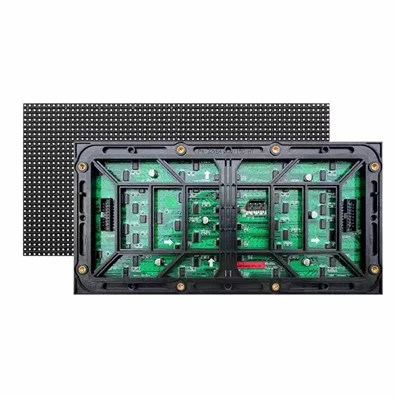
First, let’s get one basic fact out of the way: LED video walls aren’t just giant TVs. A TV is a single panel with one set of pixels, right? An LED video wall is a grid of tiny, individual LED panels put together to make one huge screen. That means your computer isn’t just sending one signal to a screen—it’s sending a signal that needs to be split up and sent to every single panel in that grid. That’s why the tech behind the connection is way more specific than just an HDMI cord.
Wait, let’s break that down with an example. Say you’ve got a 2×2 LED video wall—four panels, each 50 inches, so the whole thing is 100 inches wide and 50 inches tall. That’s a total resolution of, let’s say, 7680×2160 (4K for the whole wall). A regular laptop might have a max output of 1920×1080—full HD. So if you just plug your laptop straight into one panel, you’re only getting a tiny, scaled-up version of your content on that one panel, and the other three are just black. That’s not cool, right? So you need a piece of gear that takes your computer’s output and splits it into the right sections for every panel in the wall. We call that a video processor, and it’s non-negotiable for any setup bigger than a single panel.
Now, let’s talk about the actual cables and ports, because this is where most people mess up. A lot of folks assume HDMI 2.0 or DisplayPort 1.2 will work, and to be fair, they can—if you’re not pushing super high resolutions or refresh rates. But if you’ve got a big wall (like 4k or 8k total) and you’re running video, not just static images, you need something faster. I usually recommend DisplayPort 1.4 or HDMI 2.1 because they handle higher bandwidth without dropping frames. Oh, and never use a cheap generic cable—we’ve had customers bring us setups that dropped frames mid-presentation because they grabbed a $5 HDMI from a gas station. Invest in a decent cable; it’s like buying a good coffee maker for your morning brew—skipping the cheap one just makes everything worse.
Wait, what if your computer only has USB-C? That’s totally fine, as long as it’s a full-featured USB-C port that supports DisplayPort Alt Mode or Thunderbolt. A lot of new laptops only have USB-C, so this is super common now. We sell these little adapters (the good ones, not the $1 ones on Amazon) that turn USB-C into DisplayPort or HDMI 2.1, and they work like a charm. Just make sure your adapter matches the output of your computer and the input of your video processor—no mixing random adapters you found in your junk drawer, trust me.
Now, let’s talk about the kind of content you’re running, because that changes everything. If you’re just showing static PowerPoints, PDFs, or spreadsheets, you don’t need fancy gear. A basic video processor (like our entry-level one, which we designed specifically for small to medium setups) will do the trick. But if you’re playing 4K videos, live streams, or even gaming on the big wall? You need to step up. Those take way more bandwidth, so your computer’s graphics card matters a lot here. I’ve seen customers try to run a full 8K video wall on a laptop with an integrated Intel GPU, and it just chugged—frames dropped, the video was choppy, and everyone left the demo thinking LED walls are overrated. Don’t be that person.
What kind of GPU do you need, then? For casual use (PowerPoints, social media clips), any mid-range GPU will work—even a laptop’s dedicated GPU like the NVIDIA MX series. But for high-res video or gaming, you want something like an NVIDIA RTX or AMD Radeon RX card that supports at least 4K output and high refresh rates. Pro tip: Check your computer’s settings. On Windows, you can go to Display Settings and see what resolution and refresh rate your GPU is outputting. On Mac, it’s in System Settings > Displays. If that maxes out at 1080p, that’s a sign your computer isn’t cut for a big wall.
Wait, hold on—what about wireless connections? I know a lot of people are obsessed with wireless these days, and I get why—no cables running across the room. But I’m gonna be honest: Wireless for LED video walls is still hit or miss, especially if you’re running high-res content. Wi-Fi 6 is faster than older Wi-Fi, but it can still drop signals if there are other devices (like microwaves, other laptops) on the same network. We tested a wireless setup a year ago for a client who wanted to present at a trade show, and halfway through their demo, the signal dropped, and their whole screen went black. They lost a potential client that day. Now, we still offer wireless as an option for small setups with static content, but we always tell customers to run a hardwired backup. Because when you’re presenting to a room full of people, you don’t want your setup to die because someone made a coffee in the next office.
Another thing that’s super important: Calibration. This is the part most people skip, but it’s what makes your content look good, not just big. Every LED panel has a slightly different brightness and color temperature, right? So when you put them together in a wall, one panel might be a little too blue, another a little too dim, and the whole thing looks off. Calibration fixes that. You can do basic calibration with the settings on your video processor, but for a really professional look (like for a retail store or concert), we recommend a color calibration tool that measures each panel and adjusts them to match. I always tell customers: Don’t buy a $10,000 LED wall and then skip the calibration. It’s like buying a nice camera and never adjusting the exposure—you’re wasting the good gear.
Wait, what if you’re using a Mac vs. a Windows PC? I get this question a lot. Macs work great with LED video walls, actually—they handle high resolutions well, and the display settings are super straightforward. The only thing to watch out for is newer MacBooks that only have USB-C; you’ll just need the right adapter, like I mentioned earlier. Windows PCs are more flexible, mostly because there are way more different types of GPUs and ports, but that also means you have to check your setup more carefully. I’ve had customers with Windows desktops that have HDMI 2.1 ports, which work perfectly, and others that have older HDMI 1.4 ports, which limit their resolution. It’s just about checking your specific model.
Let me give you a real example from last month, because that’s the best way to show how this works. A small marketing agency reached out to us—they had a 3×3 LED wall for a pop-up event, and their agency lead thought they could just plug their work laptop into it and run their campaign videos. Their laptop was a 2020 MacBook Pro with only USB-C ports. They grabbed a random USB-C to HDMI adapter from Amazon, plugged it into the video processor we sold them, and turned on the wall. The videos looked super blurry, like someone zoomed in way too much, and the colors were all washed out.
I walked them through it on a call. First, we checked their laptop’s output: It was only set to 1080p, not the full 4K resolution of the wall. Then, the adapter they had was a cheap one that only supported HDMI 1.4, which maxes out at 1080p. We had them download a free tool to adjust their Mac’s display resolution (I can’t name specific tools, but there are plenty of safe, free ones) and swapped their adapter for one that supports HDMI 2.1. The difference was night and day—suddenly their videos were crisp, the colors matched across all nine panels, and they ran the whole event without a hitch. That’s the kind of small fix that makes all the difference.
Now, let’s talk about common mistakes I see all the time, because I want you to avoid these. First, buying an LED wall that’s too big for your computer. If you’re just running from a laptop that maxes out at 1080p, don’t get a wall that’s 8K total. You’ll end up with scaled-up, blurry content. Second, using a video processor that’s too weak for your setup. A cheap entry-level processor works for 2×2 walls, but for 3×3 or bigger, you need a mid-range or professional processor that can handle more panels. Third, not testing the setup before your big event. We always tell customers to test their setup at least 24 hours early—plug everything in, play their content, check for lag, blurriness, or color issues. Last-minute fixes are the worst.
Wait, what about if you want to run multiple computers to the same LED wall? Like, if you’re at a conference and you want two people to present, or you want to switch between a laptop for a presentation and a PC for playing videos. That’s totally possible too—you just need a video processor that has multiple input ports, or a matrix switcher that lets you toggle between different sources. I’ve set up that kind of setup for trade shows a hundred times, and it works great, as long as you plan ahead.
Let me wrap this up so it’s not too long, but I want to make sure you leave with all the info you need. The short answer to “Can I connect my computer to an LED video wall?” is yes, but you need three main things: 1) The right gear (video processor, correct cables/adapters, decent GPU), 2) Testing and calibration, and 3) Ditching the cheap, quick fixes that never work.
If you’re just getting started, don’t overcomplicate it. Reach out to someone who knows what they’re doing (wink, wink) and tell them what you want to use the wall for, what kind of computer you have, and how big you want the wall. We’ve helped everyone from small business owners with 2-panel walls for their storefront to big event companies with 10-panel walls for concerts, and we can walk you through every step.
I know this sounds like a lot, but it’s not rocket science. The key is to not treat your LED wall like a giant TV—treat it like a custom display that needs a little extra setup. Skip the cheap cables, check your GPU and ports, test early, and calibrate. Then you’ll have a setup that looks amazing, runs smoothly, and makes all your content pop.
If you’re looking to actually pull the trigger and get an LED wall, or just want to ask more specific questions about your computer and our setup, hit us up. We’re here to help, and we don’t do pushy sales stuff—we just want to make sure you get exactly what you need, no headaches.
Outdoor Special-design LED Display References:
- DisplayPort 1.4 Specification, Video Electronics Standards Association (VESA), 2016.
- HDMI 2.1 Specification, HDMI Forum, 2017.
- LED Display Calibration Best Practices, Society for Information Display (SID), 2020.
- USB-C Alt Mode Compatibility, USB Implementers Forum (USB-IF), 2021.
- Wireless Video Transmission for Large Displays, Audio and Video Industry Association (AVIA), 2022.
Shenzhen Starcolor Optoelectronics Co., Ltd.
As one of the most professional led video wall manufacturers and suppliers in China, we’re featured by quality products and good price. Please rest assured to wholesale discount led video wall in stock here from our factory. Customized orders are welcome.
Address: 2nd floor, Building A, Hongjingda Industrial Park, Shiyan town, Bao’an District, Shenzhen
E-mail: starcolorled@outlook.com
WebSite: https://www.starcolordisplay.com/
